Adding Rabies Tag Batches in PawthosX One
Rabies Tag Batches let your clinic register pre-numbered rabies tags issued by your local authority, supplier, or internal inventory process.
Written By Brendan Baker
Last updated 3 months ago
Once a batch is added, PawthosX One can automatically suggest the next available tag when a rabies vaccine is administered, helping your team avoid duplicate tags, skipped numbers, and manual tracking chaos.
Where to Find Rabies Tags
Go to:
ControlHub → Inventory & Pharmacy → Rabies Tags
From this page, you can view existing rabies tag batches, remaining available tags, batch status, and tag assignment history.
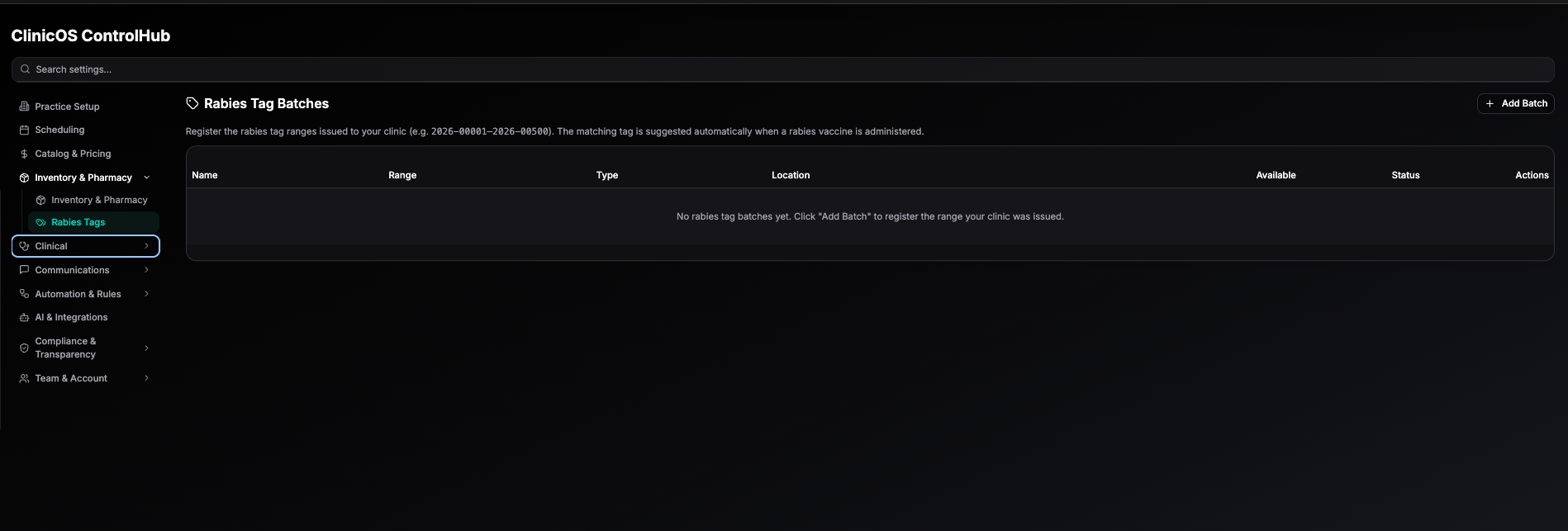
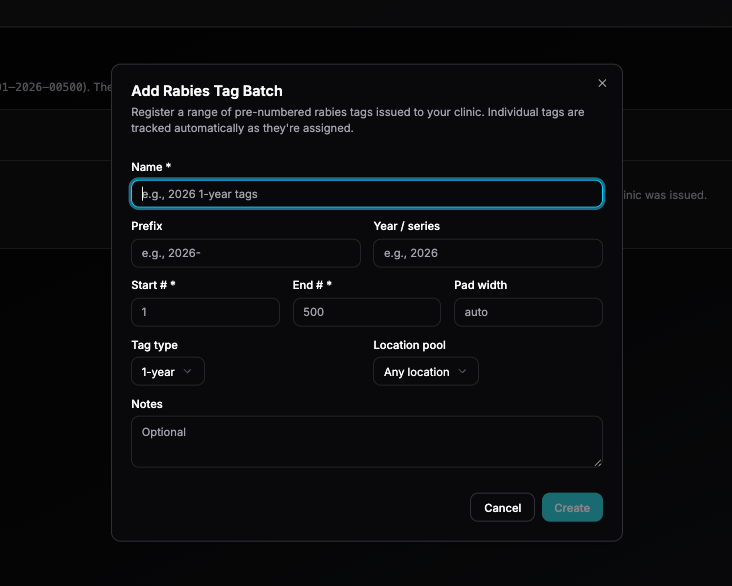
Add a New Rabies Tag Batch
Open ControlHub.
Select Inventory & Pharmacy from the left navigation.
Click Rabies Tags.
Click Add Batch in the upper-right corner.
Complete the batch details.
Click Create.
Batch Fields
Name
Give the batch a clear internal name.
Examples:
2026 1-year rabies tags2026 3-year rabies tagsCounty 2026 Rabies Batch A
Use a name your team will recognize later.
Prefix
Enter the beginning text or number pattern that appears before the tag number.
Example:
2026-
If your rabies tags are formatted as 2026-00001, the prefix would be 2026-.
Year / Series
Use this to identify the issuing year or series.
Example:
2026
This helps separate batches from different years or issuing periods.
Start
Enter the first number in the batch.
Example:
1
End
Enter the last number in the batch.
Example:
500
This would create a batch covering tags 1 through 500.
Pad Width
Pad width controls how many digits the tag number should display.
Example:
If the tag should appear as:
2026-00001
the pad width would be 5.
You can also leave this as auto and PawthosX One will format the tag range automatically based on the batch.
Tag Type
Choose the rabies tag type.
Current options include:
1-year
3-year
Select the tag type that matches the physical tags and rabies certificate requirements.
Location Pool
Choose whether the batch is available to:
Any location
A specific clinic location
Use Any location if the tags can be assigned across the organization. Use a specific location if the tag batch belongs to one hospital, mobile unit, or physical site.
Notes
Optional field for internal context.
Examples:
Issued by county on a specific date
Stored in a specific drawer or pharmacy area
Reserved for mobile appointments
Replacement batch from prior year
What Happens After Creating a Batch
After the batch is created:
The batch appears in the Rabies Tags table.
PawthosX One tracks how many tags are available.
Individual tags are assigned automatically as they are used.
The system can suggest the next available matching tag when a rabies vaccine is administered.
Batch status helps your team see whether tags are active, low, or depleted.
Best Practices
Create separate batches for different tag types, years, or locations. Do not combine 1-year and 3-year tags in the same batch.
Use a clear naming pattern so staff can quickly tell which batch should be used.
Recommended format:
Year + Tag Type + Location/Series
Example:
2026 1-year Main Clinic
Important Note
Adding a rabies tag batch does not administer a vaccine or assign a tag to a patient by itself. It only registers the available tag range so PawthosX One can track and suggest tags during rabies vaccine workflows.
Was this helpful?
Still need help? Ask the team